Home/Fire TV Stick Install
Installing FanaStream on an Amazon Fire TV Stick
The Fire TV Stick is the most common device our US subscribers use, and it is the one that needs a side-loading step. Follow the six stages below with the screenshots and you will be watching in about six minutes.
Fire TV will not install IBO Player from its own app store, so we use Amazon's own Downloader utility to fetch the installer directly from the developer. Nothing here is unusual — Amazon publishes Downloader themselves and the Developer Options panel exists precisely for this purpose.
Have these ready: your FanaStream activation email (it contains the playlist URL) and about six uninterrupted minutes with the remote. If you have not ordered yet, start with the $8.99 introductory month.
Stage 1 — Install the Downloader app
Search the Appstore
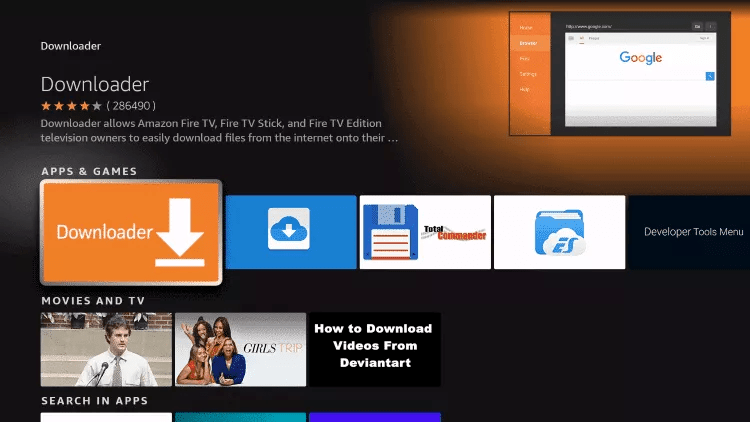
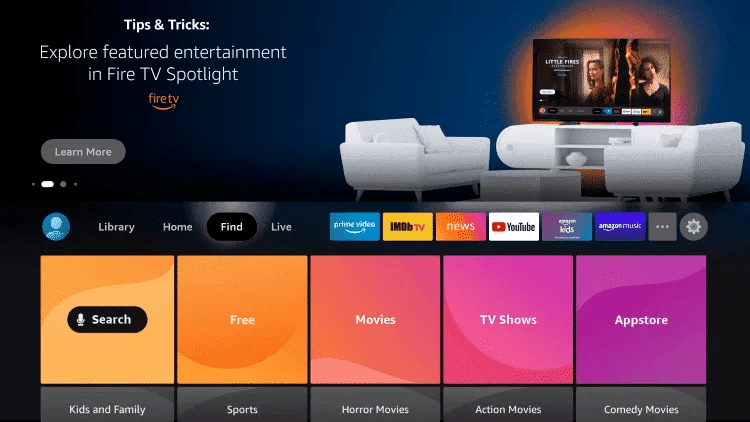
From the Fire TV home screen, move to the magnifier icon and search for Downloader. Type just D and it usually appears as the first suggestion.
Install and grant media access
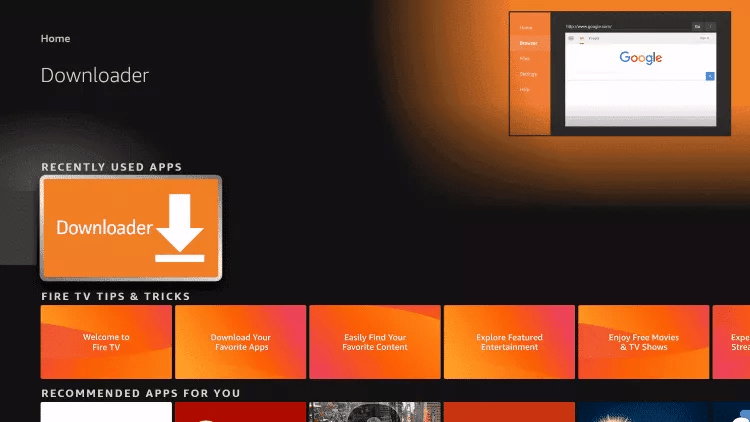
Select the orange Downloader tile and choose Download. When Fire TV asks permission for media access, choose Allow.
Stage 2 — Allow installation from unknown sources
Open Fire TV settings
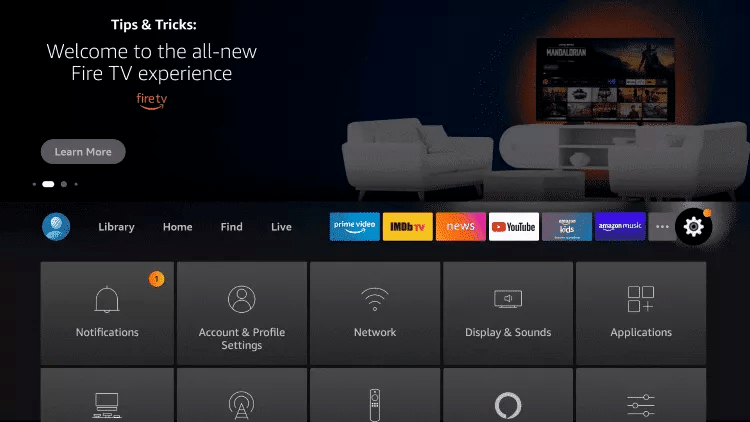
Go back to the home screen, move up to the top menu row, open Settings and select My Fire TV.
Find Developer Options
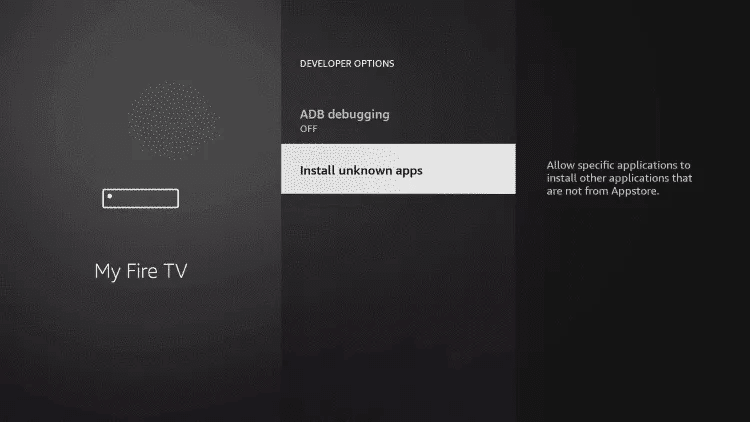
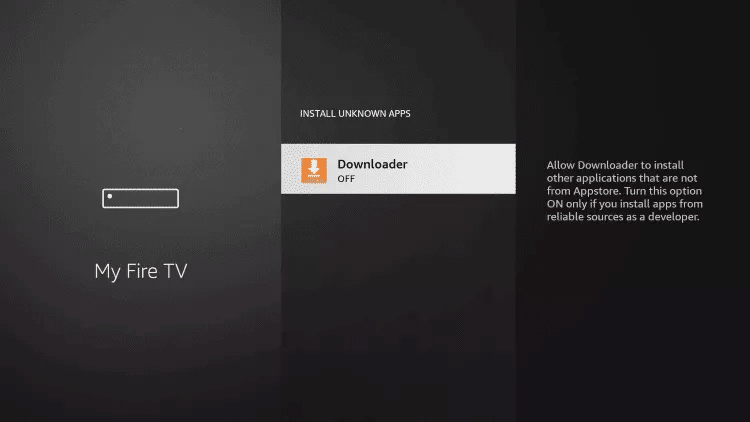
Choose Developer Options, then Install Unknown Apps. If Developer Options is not visible, highlight About and press OK seven times — it will appear.
Switch Downloader on
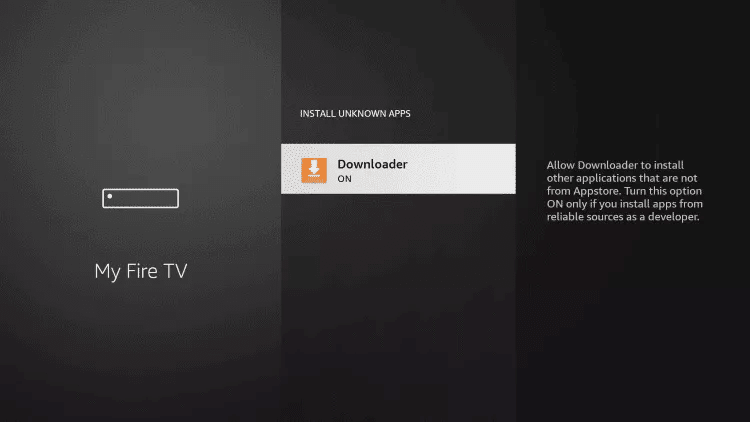
Downloader appears in the list set to OFF. Highlight it and press OK once so it reads ON.
Stage 3 — Download IBO Player
Open Downloader and enter the code
Launch Downloader from your app row. Move the selection to the URL field next to the yellow Go button, press OK, and enter the official IBO Player download code supplied in your activation email. Press Go.
Let it finish
Downloader switches to its Browser view while the package transfers. Do not press anything until the download completes — interrupting it is the most common cause of a failed install.
Install
When the installer opens, choose Install, wait for confirmation, then Open. Downloader will offer to delete the installer file afterwards — say yes, it is no longer needed.
Stage 4 — Note your Device ID and MAC address
On its first launch IBO Player shows a Device ID and a MAC address on screen. Write both down character by character. Reading them wrongly from across the room is far and away the most common reason a playlist fails to appear.
Stage 5 — Register your FanaStream playlist
Do this part on a phone or laptop rather than the remote. Open the IBO Player playlist management portal, enter the Device ID and MAC, then add the M3U playlist URL from your FanaStream activation email. If you were issued a server address with a separate username and password, use the XC playlist option instead. Save, and the credentials push down to the stick within seconds.
Stage 6 — Restart and tidy the guide
Fully close IBO Player and reopen it. Your channels, on-demand vault and programme guide load automatically. Then open Settings → Manage Categories and switch off the regions you never watch — most US households keep the US, Canada and 24/7 groups and hide the rest, which turns a very long list into something navigable.
If something goes wrong
- Downloader says the app cannot be installed: the unknown-apps toggle reverted. Repeat Stage 2 — Fire TV occasionally resets it after a system update.
- Download fails part-way: the stick's storage is full. Remove an unused app and try again; Fire TV Sticks ship with very little free space.
- IBO Player opens but shows no channels: the Device ID or MAC was mistyped in the portal. Check both and fully restart the app.
- Playback stutters on a 4K stick: switch the decoder in Settings → Live TV Player, and prefer 5GHz Wi-Fi or the Ethernet adapter where you have one.
Related reading
For other platforms — Android, Windows, macOS, LG and Samsung — see the full IBO Player setup guide. A complete list of hardware we support is on the supported devices page, and the FAQ covers speed requirements and device changes.
Stick Ready, Subscription Missing?
Order the introductory month and your credentials arrive on WhatsApp while you are still setting up.